VIDEOCAST 4K UHD AI Tracking VC 90 PTZ Camera: The Best Choice for Your Teaching and Broadcasting Needs
Updated: Oct 16
Introduction
Creating professional video content requires more than a good internet connection. Whether you are delivering an online lecture, conducting a corporate presentation or broadcasting a live event, clear visuals and consistent camera framing help your audience follow the content.
For educators and production teams, managing camera movement while presenting can be challenging. A PTZ camera offers a practical solution by allowing remote pan, tilt and zoom control. With AI auto-tracking, compatible cameras can also follow a presenter as they move within the camera's tracking area.
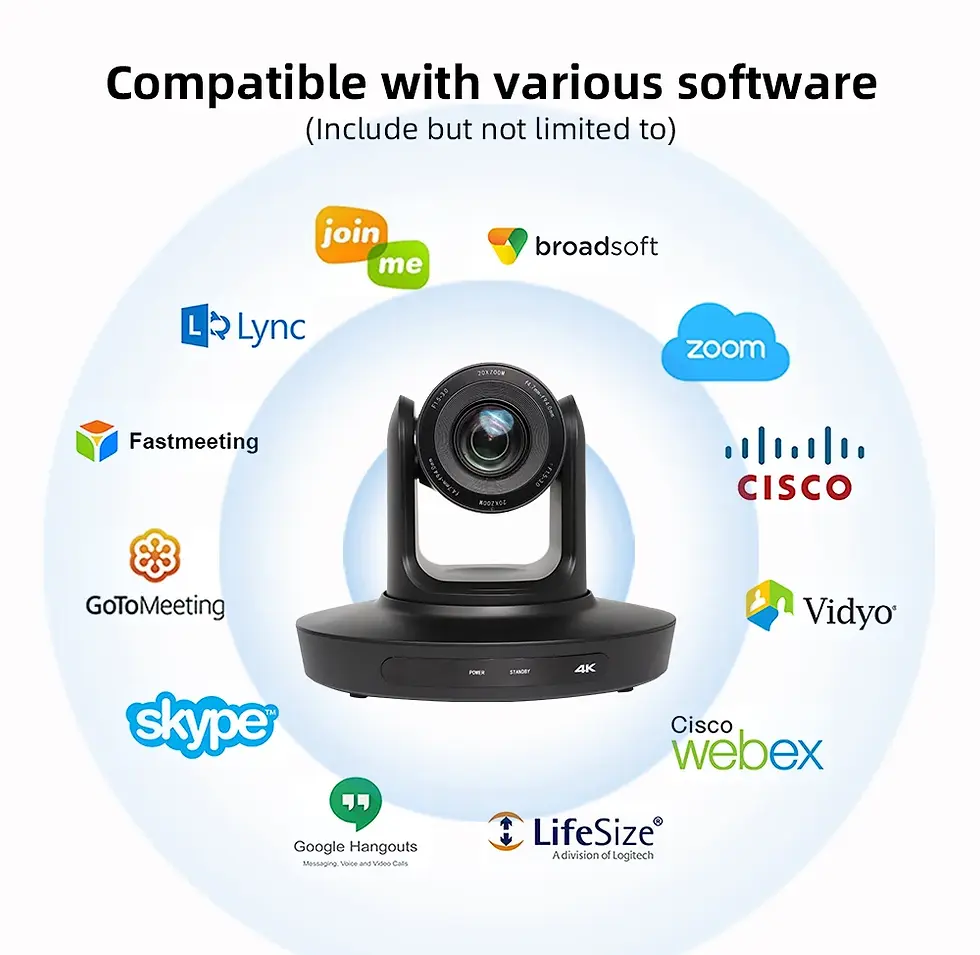
The VIDEOCAST 4K UHD AI Tracking VC 90 PTZ Camera combines 4K UHD resolution, 20x optical zoom and AI tracking capabilities in a camera designed for teaching, live streaming and professional video production.
What Makes the VIDEOCAST VC 90 PTZ Camera Useful?
A camera should suit the environment in which it will be used. The VC 90 brings together several features that can help make video production more flexible.
1. 4K UHD Resolution for Detailed Video
The VC 90 supports 4K UHD resolution, providing detailed visuals for compatible recording and production workflows.
This can be useful when showing presentation material, demonstrating products or capturing a speaker from a distance. The final video quality will also depend on lighting, output settings, connected equipment and the resolution used for streaming or recording.
For educational institutions and content creators, 4K capability provides flexibility when producing high-resolution video content.
2. 20x Optical Zoom for Flexible Framing
The VC 90 features a 20x optical zoom lens, allowing operators to move between wider views and close-up shots without relying solely on digital enlargement.
This is particularly useful in larger classrooms, lecture halls, conference rooms and auditoriums where the camera may need to be installed away from the presenter.
For example, an instructor can be framed in a wider shot during an introduction and shown in a closer view while explaining a demonstration.
3. AI Auto-Tracking for Presenters
Keeping the presenter in frame can be difficult when teaching or presenting involves movement. The VC 90's AI auto-tracking capability is designed to help follow a subject within the camera's tracking range.
This can be helpful for teachers moving between a whiteboard and a presentation screen, trainers demonstrating a process, or speakers who move around a stage.
Tracking performance depends on the subject, lighting, background and camera configuration. For important broadcasts, testing the tracking behaviour before going live is recommended.
4. Remote Pan, Tilt and Zoom Control
PTZ stands for Pan, Tilt and Zoom. These functions allow the camera's direction and framing to be adjusted remotely using a compatible control method.
Operators can position the camera to capture a wide view of a room, focus on a presenter or frame a specific area. Preset positions, where supported and configured, can also help recall frequently used camera views.
This flexibility is useful for productions that need different views without physically repositioning the camera.
How the VC 90 Can Support Online Teaching
Online education often requires instructors to do several things at once: explain a topic, display supporting material and interact with students.
A PTZ camera can help create a more flexible teaching environment.
· Presenter framing: Keep the teacher clearly visible during a lesson.
· Whiteboard demonstrations: Adjust the camera view to show diagrams, notes or explanations.
· Recorded lectures: Produce video content for students to review later.
· Hybrid classrooms: Support video capture for learners attending remotely.
· Training sessions: Show the instructor and practical demonstrations through planned camera views.
The camera should be positioned and configured according to the classroom layout. A suitable microphone and appropriate lighting are also important for creating a complete teaching setup.
Using the VC 90 for Broadcasting and Live Streaming
The VC 90 can also be considered for production environments beyond education.
Corporate Meetings and Webinars
For corporate presentations, the camera can help capture speakers and meeting-room activity. Remote control makes it possible to adjust framing without placing an operator beside the camera.
Live Events and Conferences
A camera with optical zoom and PTZ movement can capture wider stage views and closer shots of speakers. In multi-camera productions, it may be used alongside other cameras and a compatible video switcher.
YouTube and Content Production
Content creators can use a PTZ camera for tutorials, product demonstrations, interviews and studio presentations. Remote framing can be particularly useful when one person is managing the presentation and video setup.
Worship and Auditorium Streaming
Auditoriums and worship venues may need different views of speakers, performers and stage activities. PTZ control and compatible tracking features can help operators manage these views from a separate position.
How to Integrate the VC 90 into Your Setup
Before installing the camera, consider how the video will reach your streaming or recording system.
Step 1: Choose the Camera Position
Select a position that provides a clear view of the presenter or stage. Consider the distance, mounting height, lighting and areas the camera needs to cover.
Step 2: Confirm the Connections
Check the camera's supported outputs and control connections. The VC 90 product specifications list HDMI, USB 3.0 and RS-232C connectivity. Confirm the required ports and cable types for your specific workflow before installation.
Step 3: Configure Camera Control
Set up the compatible control method and adjust the camera's movement, zoom and framing. If you intend to use AI tracking, test it in the actual environment.
Step 4: Connect to Your Streaming Workflow
Depending on the production setup, the camera can be connected to compatible capture equipment, a computer or other supported video-production devices. Confirm compatibility with your streaming software and any switcher or encoder in the signal chain.
Step 5: Test the Complete Production
Check video quality, focus, camera movement, audio synchronisation and the final output. A rehearsal can help identify issues before an important lecture, webinar or live event.
What to Consider Before Choosing the VC 90
The best camera depends on your specific requirements. Before making a decision, consider:
Room size: Determine how much optical zoom and camera movement you need.
Video workflow: Check whether your recording or streaming setup requires HDMI, USB or another supported connection.
Tracking requirements: Decide whether automated presenter tracking is useful for your application.
Installation: Consider mounting, power, cabling and camera placement.
Audio: Choose a suitable microphone or audio system for clear speech.
Future expansion: Check whether the camera can work with your planned controller, switcher and other production equipment.
Considering these points helps ensure that the camera fits into your existing workflow instead of creating additional compatibility challenges.
Explore the VIDEOCAST VC 90 PTZ Camera
If you are planning to upgrade your teaching, streaming or broadcasting setup, explore the VIDEOCAST VC 90 4K PTZ Camera and review its specifications against your production needs.
Read more about the VIDEOCAST VC90 4K PTZ Camera for Teaching and YouTube Video to explore the product details.
You can also visit the SKYWIRE BROADCAST website to explore additional video production and broadcasting equipment.
Conclusion
A well-planned camera setup can make teaching and broadcasting easier to manage. The VIDEOCAST VC 90 combines 4K UHD video, 20x optical zoom, remote PTZ control and AI auto-tracking capabilities for applications such as online education, webinars, live streaming and professional video production.
By considering your room layout, connection requirements and production workflow, you can determine whether the VC 90 is a suitable fit for your setup.
The goal is not simply to choose a camera with advanced features, but to select equipment that helps you deliver clear, consistent and well-framed video.
Frequently Asked Questions
1. What is the VIDEOCAST VC 90 PTZ Camera used for?
The VC 90 is designed for applications such as online teaching, YouTube video production, live streaming, meetings and broadcasting.
2. Does the VIDEOCAST VC 90 support 4K UHD video?
Yes. The VC 90 supports 4K UHD resolution. The actual recording or streaming resolution depends on the connected equipment and configured output settings.
3. What optical zoom does the VC 90 offer?
The VC 90 model described on the product page features 20x optical zoom, allowing wider views and closer framing for different production needs.
4. How does AI auto-tracking help teachers?
AI auto-tracking can help follow a teacher as they move within the supported tracking area, reducing the need for constant manual camera adjustments.
5. Can the VC 90 be used with streaming software?
It can be integrated into a compatible streaming workflow. Check the camera's supported output connections and confirm compatibility with your computer, capture equipment and software.
6. Is the VC 90 suitable for large classrooms or auditoriums?
Its 20x optical zoom and remote PTZ control can be useful in larger spaces. The best results depend on camera placement, subject distance, lighting and the required viewing angle.
7. What other equipment may be needed with the VC 90?
Depending on your setup, you may need a compatible controller, microphone, lighting, cables, video switcher, capture device or encoder.
8. Where can I find more information about the VIDEOCAST VC 90?
Visit the SKYWIRE BROADCAST website or view the VC 90 product page for additional product information.


Comments